> ## Documentation Index
> Fetch the complete documentation index at: https://docs.brilo.ai/llms.txt
> Use this file to discover all available pages before exploring further.
# Import a phone number from Twilio
> Bring your existing Twilio number into Brilo for voice and SMS — voice via SIP trunking, SMS via your Twilio account credentials.
Already have a Twilio number? You can bring it into Brilo for **voice and SMS** in about 15 minutes. For voice, you'll only share SIP-layer credentials scoped to a single trunk. For SMS, you'll share your Twilio Account SID and Auth Token (encrypted at rest, used only for messages on this number).
The voice setup (Steps 1–7) is required. The SMS setup (Step 8) is **optional** — skip it if you only need voice calls.
***
## Before you start
* An active Twilio account that owns the phone number (DID) you want to import.
* **Voice Geographic Permissions** enabled for the destinations you'll dial.
Twilio console → **Voice → Settings → Geo Permissions**.
* For non-US numbers (e.g. AU +61, UK +44, etc.): a **Regulatory Bundle** or Address attached to the DID.
Twilio console → **Phone Numbers → Regulatory Compliance**.
* **For SMS (optional):** the number must be SMS-capable in your country. **US numbers** additionally require **A2P 10DLC** Brand + Campaign registration (Twilio console → Messaging → Regulatory Compliance) before they can send.
* Admin access to your Brilo workspace.
***
## Step 1 — Start the Brilo import wizard
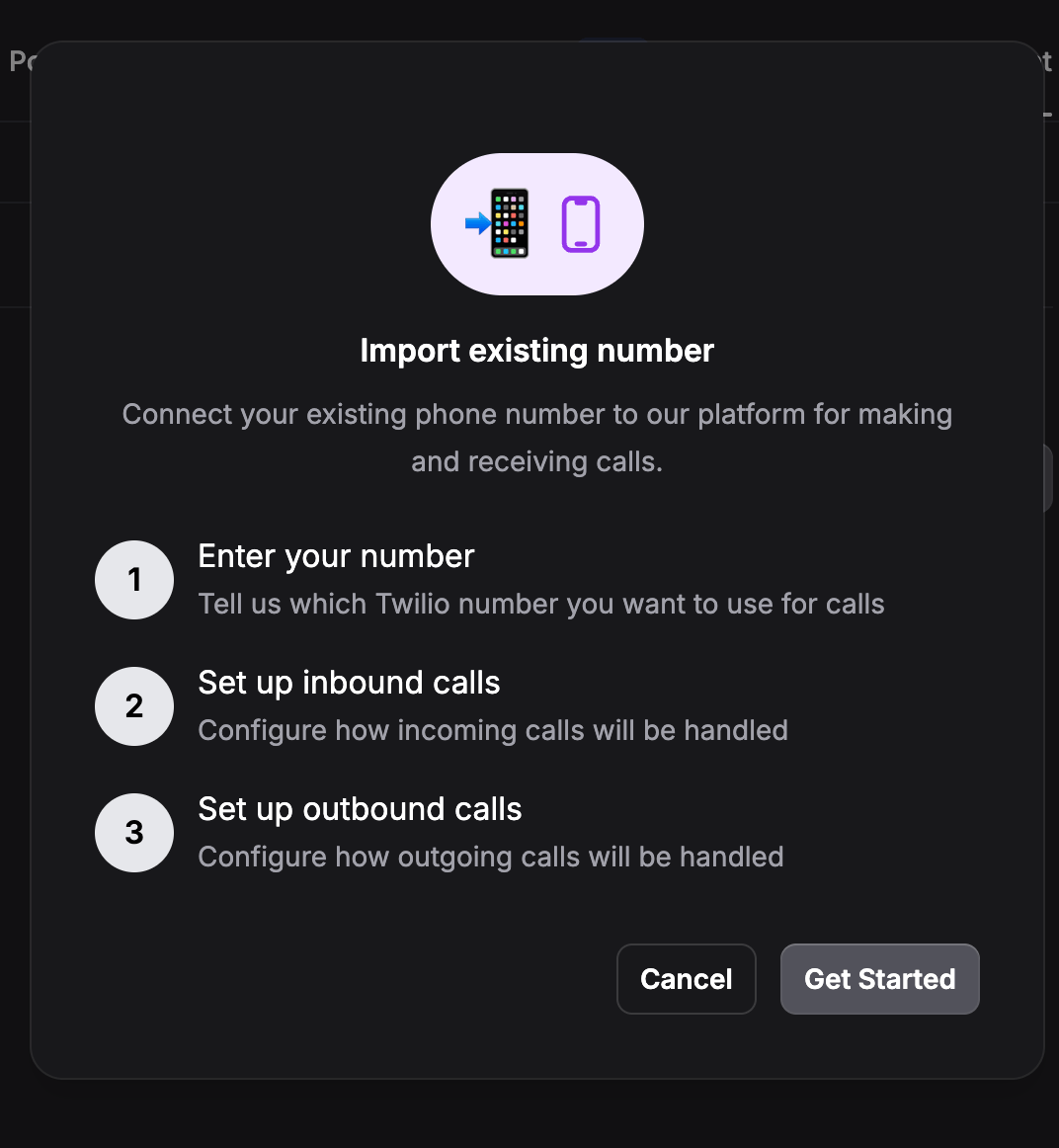
In your Brilo dashboard, navigate to **Phone Numbers** and click **Import existing number**, then **Get Started**.
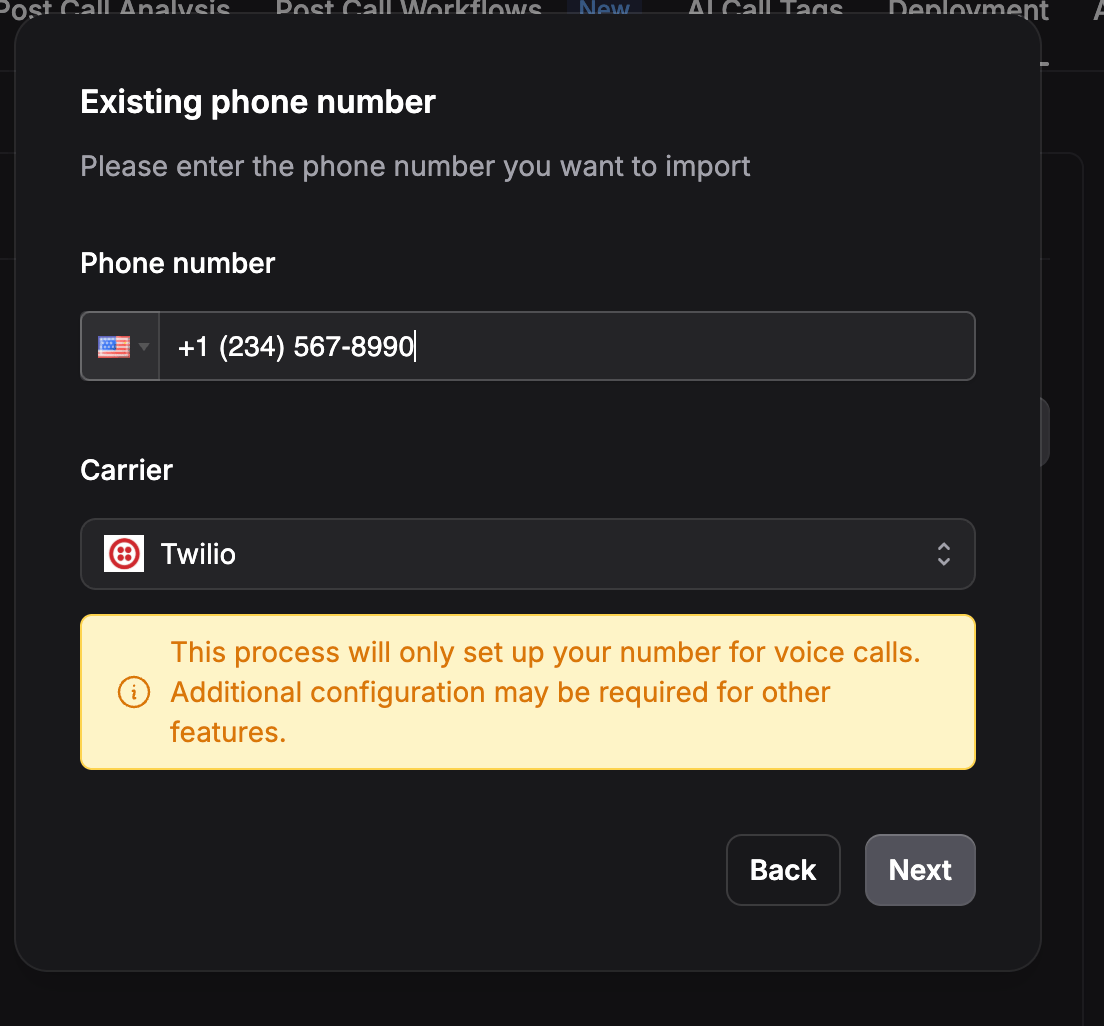
 Enter your phone number in E.164 format (e.g. `+12345678990`) and select **Twilio** as the carrier. Click **Next**.
 ***
## Step 2 — Copy your Origination URI
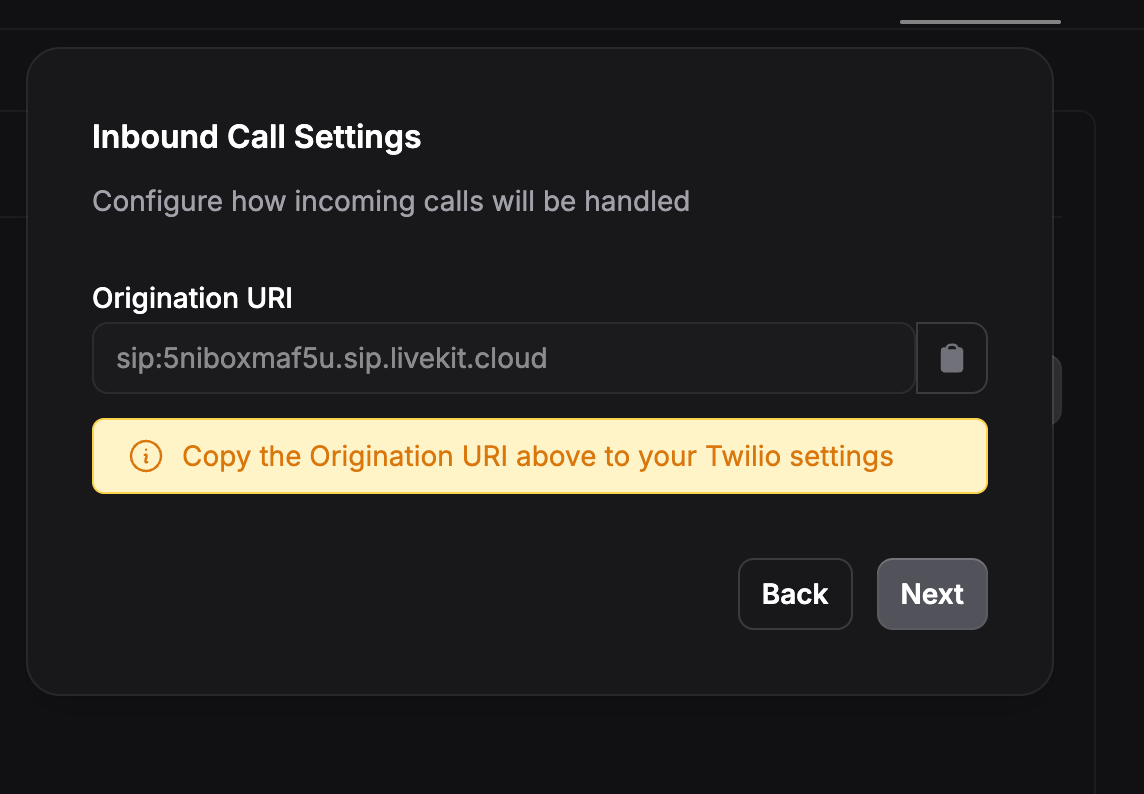
Brilo displays a unique **Origination URI** (it looks like `sip:abc123.sip.livekit.cloud`). This is the address Twilio will send inbound calls to.
Copy it — you'll paste it into Twilio in the next step. **Keep this Brilo wizard tab open**; you'll come back to it in Step 7.
***
## Step 2 — Copy your Origination URI
Brilo displays a unique **Origination URI** (it looks like `sip:abc123.sip.livekit.cloud`). This is the address Twilio will send inbound calls to.
Copy it — you'll paste it into Twilio in the next step. **Keep this Brilo wizard tab open**; you'll come back to it in Step 7.
 ***
## Step 3 — Create an Elastic SIP Trunk in Twilio
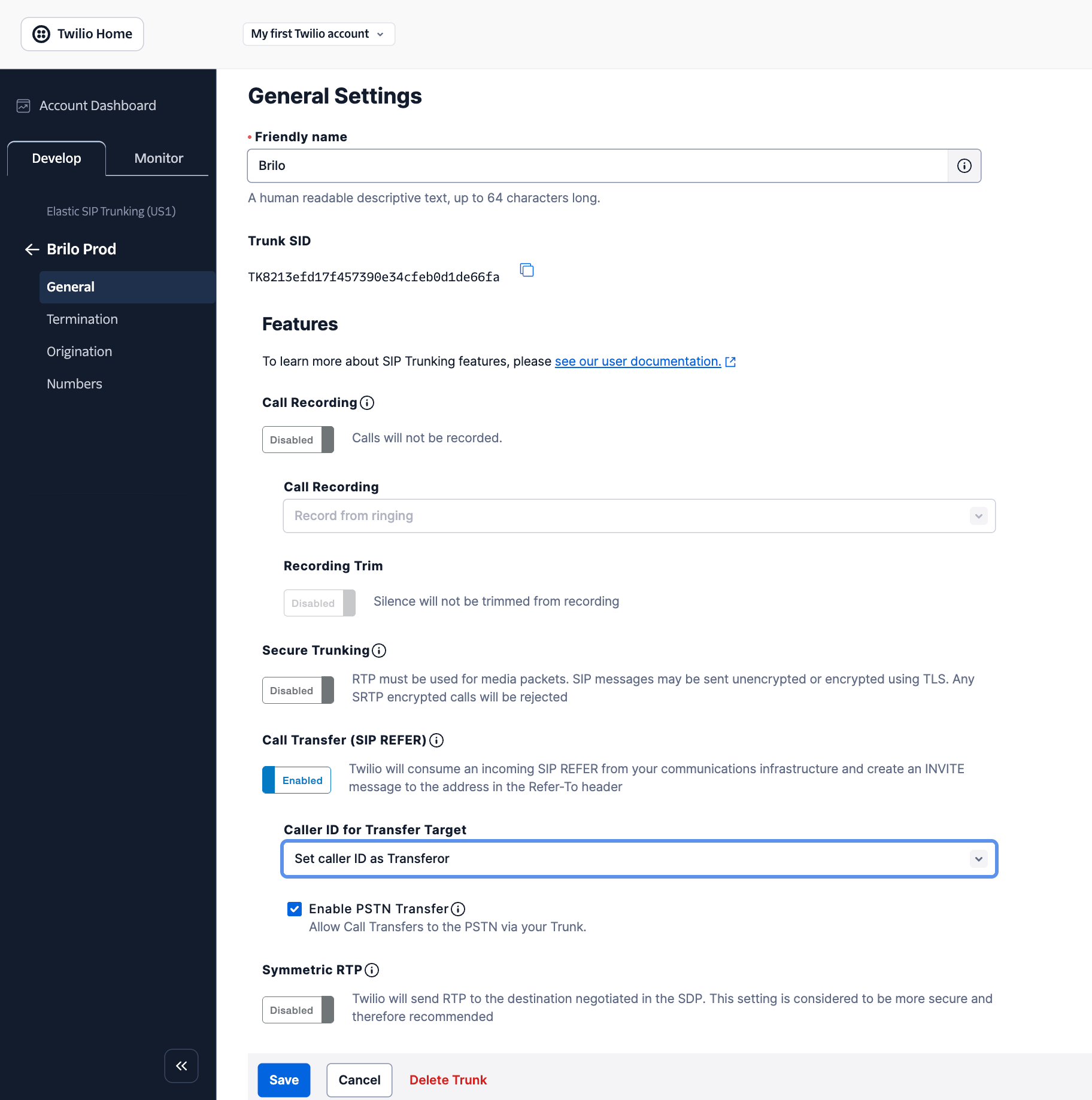
In a new browser tab, open the [Twilio Console](https://console.twilio.com) and go to **Elastic SIP Trunking → Trunks**, then click **Create new SIP Trunk**. Give it a name (e.g. `Brilo`).
In the trunk's **General** tab, set:
| Setting | Value | Why |
| ----------------------------- | ------------------------------- | ----------------------------------------------------------------------------------------------------------- |
| Call Recording | Disabled | Brilo records calls natively |
| Secure Trunking | Disabled | — |
| Call Transfer (SIP REFER) | **Enabled** | Required for warm and cold transfers |
| Caller ID for Transfer Target | **Set caller ID as Transferor** | Uses your DID (a verified caller-ID on the trunk) on transfer legs. "Transferee" causes Twilio error 32204. |
| Enable PSTN Transfer | **Checked** | Required so Twilio can dial real phone numbers when Brilo transfers a call |
| Symmetric RTP | Disabled | — |
Click **Save**.
***
## Step 3 — Create an Elastic SIP Trunk in Twilio
In a new browser tab, open the [Twilio Console](https://console.twilio.com) and go to **Elastic SIP Trunking → Trunks**, then click **Create new SIP Trunk**. Give it a name (e.g. `Brilo`).
In the trunk's **General** tab, set:
| Setting | Value | Why |
| ----------------------------- | ------------------------------- | ----------------------------------------------------------------------------------------------------------- |
| Call Recording | Disabled | Brilo records calls natively |
| Secure Trunking | Disabled | — |
| Call Transfer (SIP REFER) | **Enabled** | Required for warm and cold transfers |
| Caller ID for Transfer Target | **Set caller ID as Transferor** | Uses your DID (a verified caller-ID on the trunk) on transfer legs. "Transferee" causes Twilio error 32204. |
| Enable PSTN Transfer | **Checked** | Required so Twilio can dial real phone numbers when Brilo transfers a call |
| Symmetric RTP | Disabled | — |
Click **Save**.
 ***
## Step 4 — Paste the Origination URI
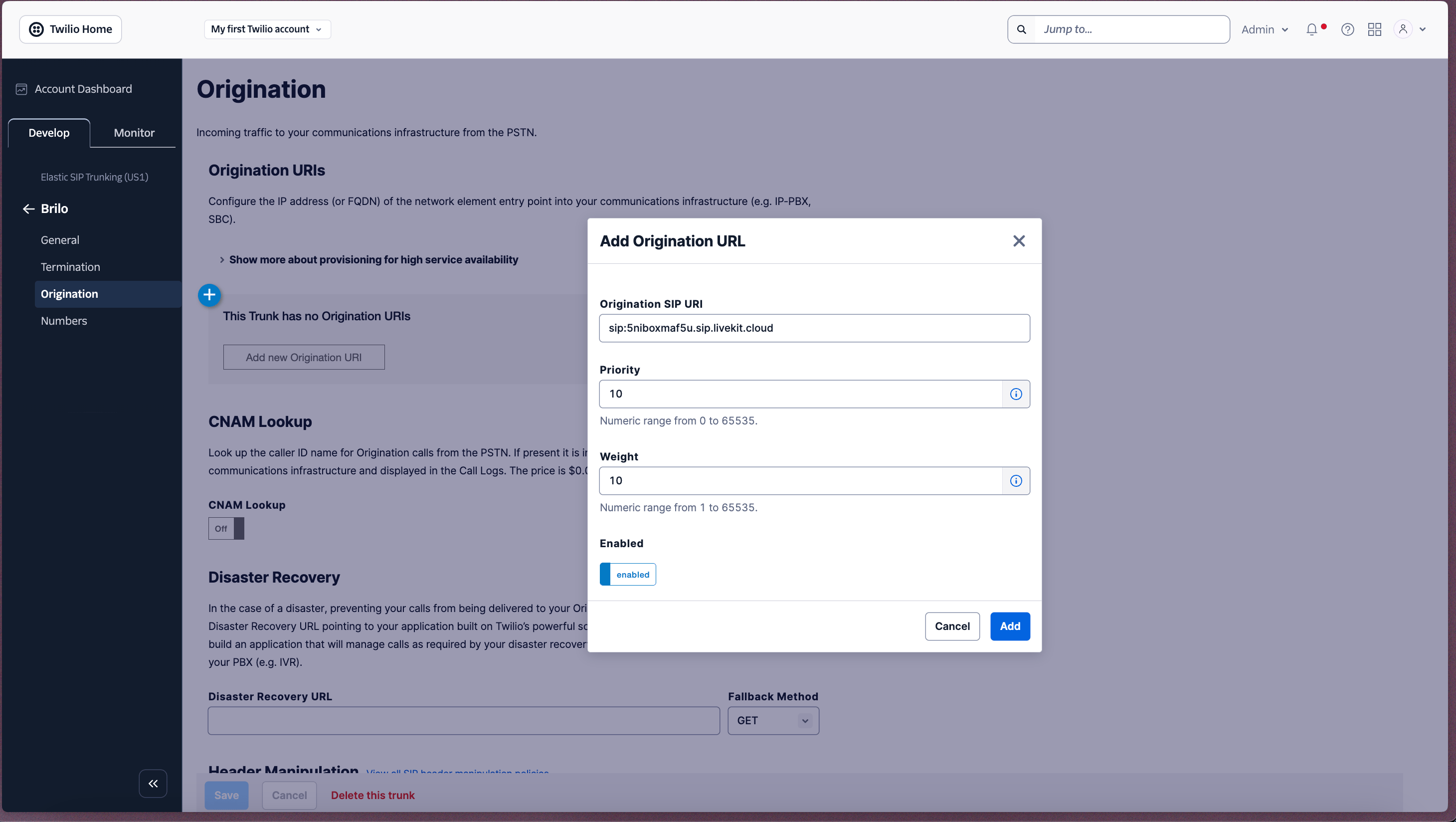
Open the trunk's **Origination** tab. Click **Add new Origination URI** and paste the URI you copied from Brilo in Step 2. Use **priority 10** and **weight 10**. Save.
***
## Step 4 — Paste the Origination URI
Open the trunk's **Origination** tab. Click **Add new Origination URI** and paste the URI you copied from Brilo in Step 2. Use **priority 10** and **weight 10**. Save.
 ***
## Step 5 — Configure Termination credentials
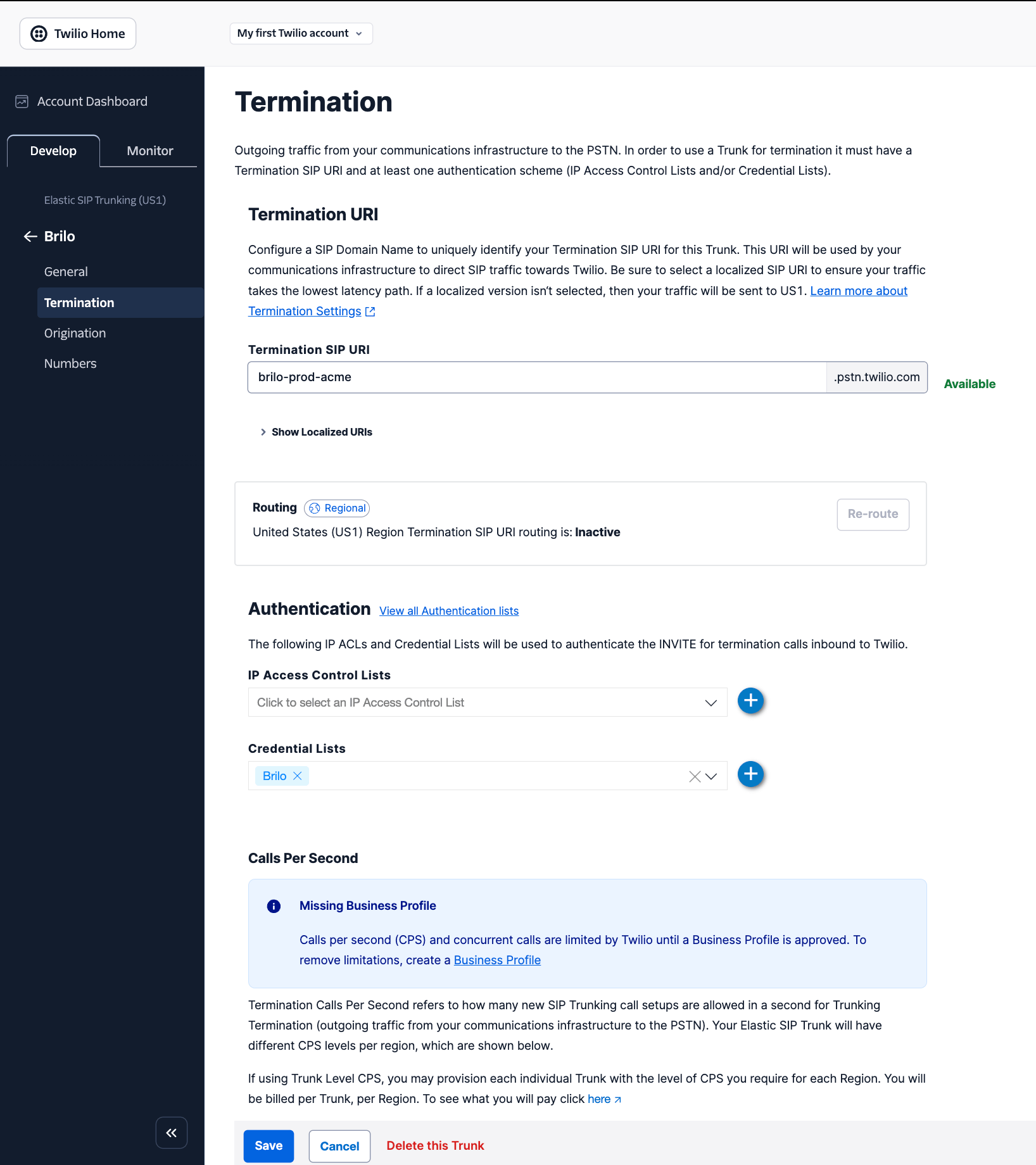
Open the trunk's **Termination** tab. You'll create three things here: the Termination SIP URI, (optionally) a localized regional URI, and a Credential List.
### 5a. Create the Termination SIP URI
In the **Termination SIP URI** box, type a unique subdomain prefix (e.g. `brilo-prod-acme`). Twilio appends `.pstn.twilio.com`, giving you a full URI like `brilo-prod-acme.pstn.twilio.com`.
* The prefix must be **globally unique** across all Twilio customers. If Twilio rejects your first choice, add a short random suffix (e.g. `brilo-prod-acme-9k2`).
* Save the full URI — you'll paste it into Brilo in Step 7.
**Non-US numbers (AU, UK, EU, etc.):** Click **Show Localized URIs** and select the regional URI closest to your number — Sydney for AU, Dublin for UK/EU, etc. Without this, all outbound traffic round-trips through Twilio's US region, adding 150–300ms of latency to every call.
### 5b. Create a Credential List
Scroll down to **Authentication**. Skip **IP Access Control Lists** (leave it empty — Brilo uses credential-based auth). In **Credential Lists**, click the `+` button to create a new list with a username and a long random password.
* Save the username and password somewhere safe — you'll paste them into Brilo in Step 7.
### 5c. Save
Click **Save** at the bottom of the page.
***
## Step 5 — Configure Termination credentials
Open the trunk's **Termination** tab. You'll create three things here: the Termination SIP URI, (optionally) a localized regional URI, and a Credential List.
### 5a. Create the Termination SIP URI
In the **Termination SIP URI** box, type a unique subdomain prefix (e.g. `brilo-prod-acme`). Twilio appends `.pstn.twilio.com`, giving you a full URI like `brilo-prod-acme.pstn.twilio.com`.
* The prefix must be **globally unique** across all Twilio customers. If Twilio rejects your first choice, add a short random suffix (e.g. `brilo-prod-acme-9k2`).
* Save the full URI — you'll paste it into Brilo in Step 7.
**Non-US numbers (AU, UK, EU, etc.):** Click **Show Localized URIs** and select the regional URI closest to your number — Sydney for AU, Dublin for UK/EU, etc. Without this, all outbound traffic round-trips through Twilio's US region, adding 150–300ms of latency to every call.
### 5b. Create a Credential List
Scroll down to **Authentication**. Skip **IP Access Control Lists** (leave it empty — Brilo uses credential-based auth). In **Credential Lists**, click the `+` button to create a new list with a username and a long random password.
* Save the username and password somewhere safe — you'll paste them into Brilo in Step 7.
### 5c. Save
Click **Save** at the bottom of the page.
 Never share your Twilio Account SID or Auth Token with Brilo. The Credential List username and password are the only credentials Brilo needs, and they only authorize calls through this one trunk.
***
## Step 6 — Assign your number to the trunk
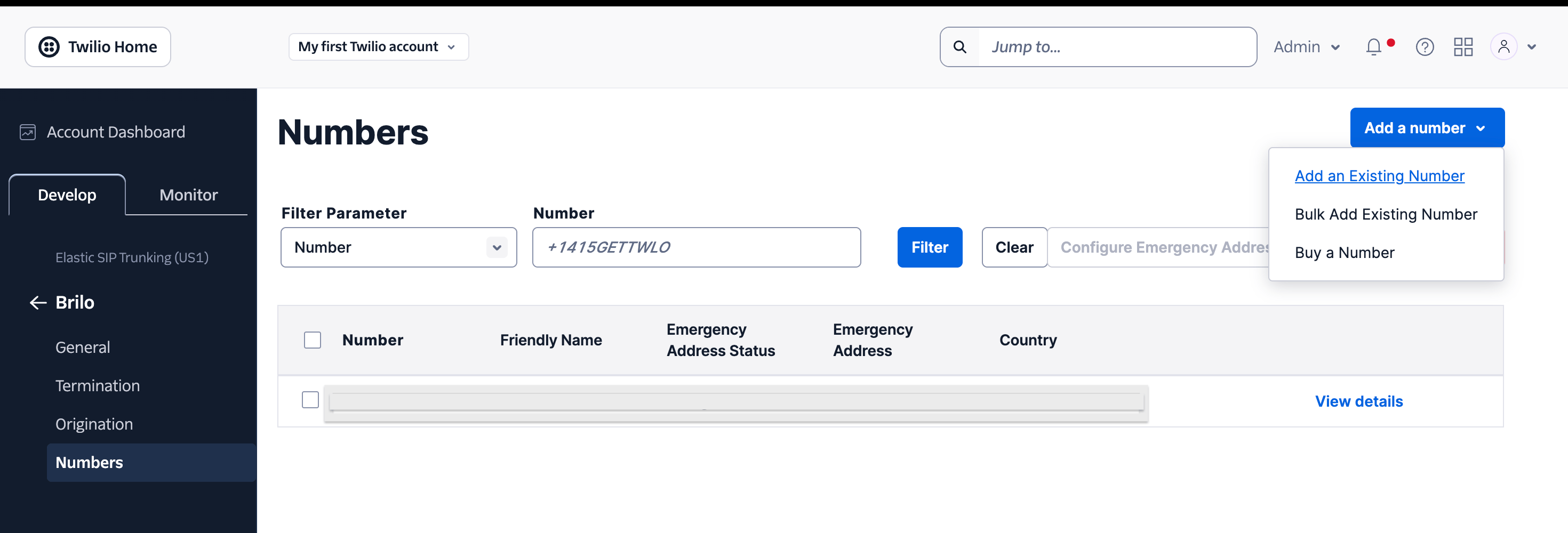
Inside your trunk (still in **Elastic SIP Trunking → Trunks → your trunk**), click **Numbers** in the left sidebar — the same nav where you clicked General, Termination, and Origination.
1. Click **Add a number**.
2. Twilio shows the numbers in your account that aren't already attached to another trunk. Select the DID you're importing.
3. Click **Add Selected** and save.
Never share your Twilio Account SID or Auth Token with Brilo. The Credential List username and password are the only credentials Brilo needs, and they only authorize calls through this one trunk.
***
## Step 6 — Assign your number to the trunk
Inside your trunk (still in **Elastic SIP Trunking → Trunks → your trunk**), click **Numbers** in the left sidebar — the same nav where you clicked General, Termination, and Origination.
1. Click **Add a number**.
2. Twilio shows the numbers in your account that aren't already attached to another trunk. Select the DID you're importing.
3. Click **Add Selected** and save.
 **If your DID doesn't appear in the list**, it's already bound to another trunk, TwiML app, or webhook. Go to **Phone Numbers → Manage → Active Numbers**, click the DID, and clear its current Voice Configuration — then return here.
***
## Step 7 — Finish in Brilo
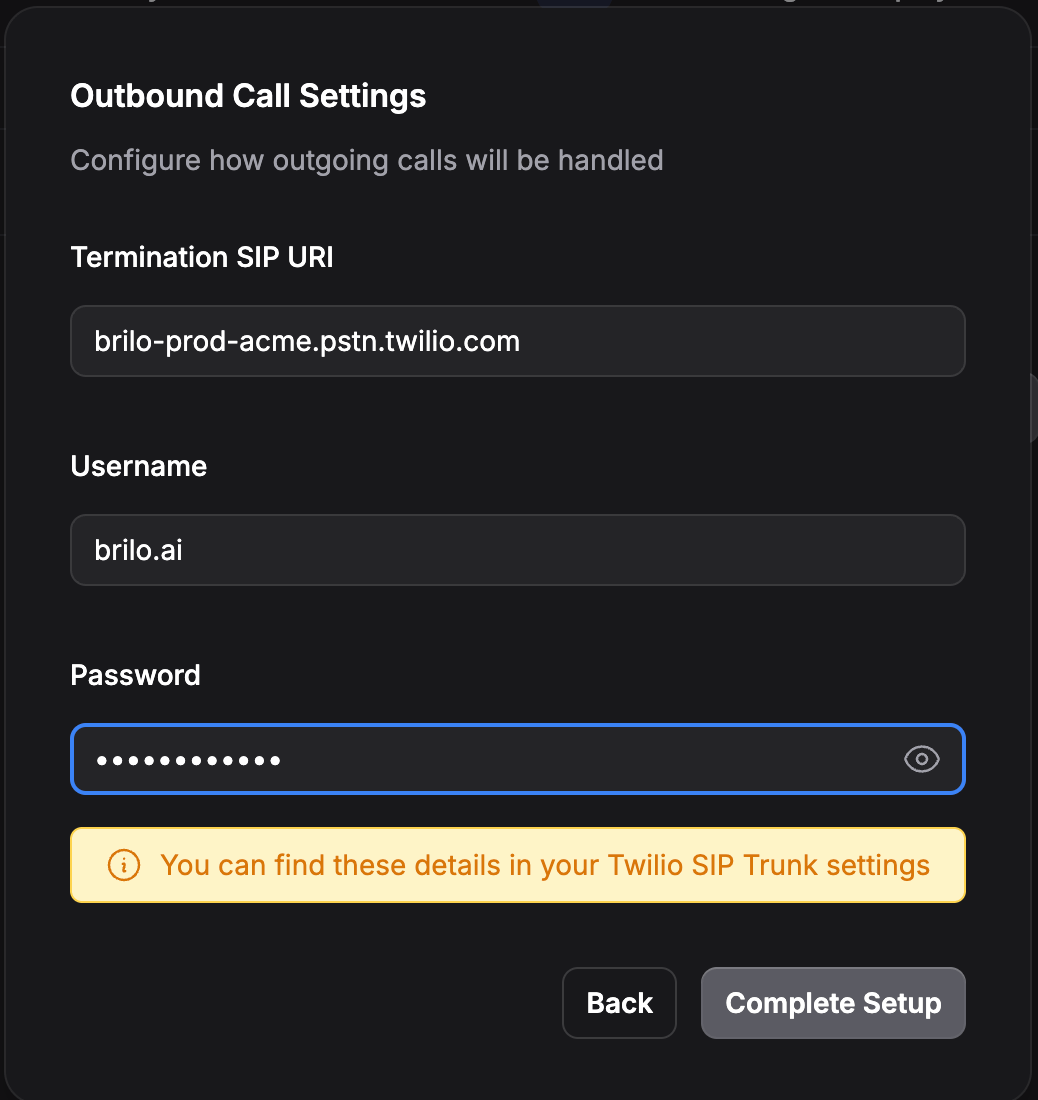
Switch back to the Brilo wizard tab. Paste the three values you captured in Twilio:
* **Termination SIP URI** (from Step 5)
* **Username** (from your Credential List)
* **Password** (from your Credential List)
Click **Complete Setup**.
**If your DID doesn't appear in the list**, it's already bound to another trunk, TwiML app, or webhook. Go to **Phone Numbers → Manage → Active Numbers**, click the DID, and clear its current Voice Configuration — then return here.
***
## Step 7 — Finish in Brilo
Switch back to the Brilo wizard tab. Paste the three values you captured in Twilio:
* **Termination SIP URI** (from Step 5)
* **Username** (from your Credential List)
* **Password** (from your Credential List)
Click **Complete Setup**.
 Brilo provisions the SIP trunks for your number in the background — this usually takes a few seconds. Once your number appears in your Phone Numbers list, it's ready to handle calls. Attach it to one of your agents to start taking traffic.
***
## Step 8 — Enable SMS (optional)
Skip this step if you only need voice. To send and receive SMS on your imported number, complete the messaging step in the Brilo wizard before clicking **Complete Setup**.
### 8a. Toggle SMS on and paste your Twilio credentials
In the Brilo wizard's **Set up messaging** step, switch the **Enable SMS** toggle on. Two fields appear:
* **Twilio Account SID** — starts with `AC`, found on your Twilio Console home page → **Account Info → Account SID**.
* **Twilio Auth Token** — also on the Twilio Console home page → **Account Info → Auth Token** (click the eye to reveal).
Your Twilio Account SID and Auth Token give access to your entire Twilio account. Brilo stores them encrypted at rest (AES-256-CBC) and uses them only for sending SMS from this number and verifying inbound webhooks. Treat them like a password — rotate immediately if you suspect a leak.
Brilo provisions the SIP trunks for your number in the background — this usually takes a few seconds. Once your number appears in your Phone Numbers list, it's ready to handle calls. Attach it to one of your agents to start taking traffic.
***
## Step 8 — Enable SMS (optional)
Skip this step if you only need voice. To send and receive SMS on your imported number, complete the messaging step in the Brilo wizard before clicking **Complete Setup**.
### 8a. Toggle SMS on and paste your Twilio credentials
In the Brilo wizard's **Set up messaging** step, switch the **Enable SMS** toggle on. Two fields appear:
* **Twilio Account SID** — starts with `AC`, found on your Twilio Console home page → **Account Info → Account SID**.
* **Twilio Auth Token** — also on the Twilio Console home page → **Account Info → Auth Token** (click the eye to reveal).
Your Twilio Account SID and Auth Token give access to your entire Twilio account. Brilo stores them encrypted at rest (AES-256-CBC) and uses them only for sending SMS from this number and verifying inbound webhooks. Treat them like a password — rotate immediately if you suspect a leak.
 ### 8b. Click Complete Setup
That's it — you do not need to open the Twilio Console for SMS.
When you click **Complete Setup**, Brilo:
1. Validates your credentials against Twilio's API.
2. **Configures the inbound Messaging webhook on your Twilio number automatically** — `SmsUrl` is set to `https://api.brilo.ai/twilio/webhook` (POST) on your behalf, using the credentials you just provided.
3. Encrypts and stores the credentials.
If any of these fail (typo in SID, wrong account, number not on this account), the wizard shows an inline error and you can correct it.
**About overwriting existing webhooks:** if your Twilio number was previously pointed at a different SMS webhook (e.g. another integration), Brilo's setup will replace it. Re-attach the previous webhook only if you remove this number from Brilo later.
Once setup completes, your number is ready for both voice and SMS. Send a text to the DID from your phone to verify inbound; trigger an SMS-capable agent flow to verify outbound.
***
## Common issues
The caller-ID on the supervisor leg isn't verified on your Twilio trunk. Make sure the DID you imported is the From: number on the outbound leg — Brilo does this automatically for inbound-originated transfers, but for outbound campaigns, double-check the agent's outbound number is the imported DID.
Two likely causes:
1. **Credential mismatch (error 32011)** — the Termination username/password you pasted into Brilo doesn't match the Credential List on your Twilio trunk. Re-enter them in the Brilo wizard, making sure there are no stray whitespace characters.
2. **Geographic Permissions block (error 13227 or 21215)** — your Twilio account doesn't permit calls to the destination country. Enable it in Twilio Console → **Voice → Settings → Geo Permissions**.
Either:
1. The DID isn't pointed at the SIP Trunk in Step 6 — check Voice Configuration on the number.
2. The Origination URI in Step 4 has a typo — confirm it matches what Brilo showed in Step 2 exactly, including the `sip:` prefix.
Twilio requires a Regulatory Bundle for non-US DIDs. Open Twilio Console → **Phone Numbers → Regulatory Compliance** and attach the appropriate bundle to your DID before importing.
This usually means the background registration job failed. Contact [support@brilo.ai](mailto:support@brilo.ai) with your phone number and we'll investigate.
Brilo validates your Account SID and Auth Token against Twilio's API before saving. The most common causes:
1. **Typo or whitespace** in the SID or token — re-copy both directly from Twilio Console → Account Info.
2. **Wrong account** — your Account SID starts with `AC` and is exactly 34 characters. If you're using a Twilio sub-account, make sure the SID and Auth Token come from the same sub-account that owns the imported DID.
3. **Rotated Auth Token** — if you recently regenerated your Auth Token in Twilio, use the new one.
Brilo sets the inbound webhook on your Twilio number automatically when you complete Step 8. If inbound SMS still isn't reaching us, check in order:
1. **Webhook was actually configured.** Open Twilio Console → **Phone Numbers → Manage → Active Numbers → your DID → Messaging Configuration**. The **A message comes in** field should be set to `https://api.brilo.ai/twilio/webhook` (POST). If it's blank or wrong, re-run Step 8 in the Brilo wizard.
2. **Signature validation is failing.** Brilo verifies every inbound SMS against your stored Auth Token. If you rotated the Auth Token in Twilio after importing, re-enter it in the Brilo wizard so our stored value matches.
3. **Number isn't SMS-capable.** Check Twilio Console → your number → Capabilities. If SMS is disabled, enable it (some countries require regulatory steps first).
4. **Webhook was manually changed.** If you (or another tool) overwrote `SmsUrl` after Step 8, re-run Step 8 to restore it.
The number isn't enabled for SMS on your Twilio account. Open Twilio Console → **Phone Numbers → Manage → Active Numbers** → click your DID → confirm the **Capabilities** include SMS. Enable SMS if it's off; some countries require regulatory approval first.
Your Twilio account doesn't have A2P 10DLC registration. US carriers require every business sender to register a Brand and Campaign with The Campaign Registry. Open Twilio Console → **Messaging → Regulatory Compliance → A2P 10DLC** and complete the registration. This is a Twilio account-level requirement; Brilo can't bypass it.
***
## Need help?
Reach us at [support@brilo.ai](mailto:support@brilo.ai) with your phone number and a description of where you got stuck. We'll get you live.
### 8b. Click Complete Setup
That's it — you do not need to open the Twilio Console for SMS.
When you click **Complete Setup**, Brilo:
1. Validates your credentials against Twilio's API.
2. **Configures the inbound Messaging webhook on your Twilio number automatically** — `SmsUrl` is set to `https://api.brilo.ai/twilio/webhook` (POST) on your behalf, using the credentials you just provided.
3. Encrypts and stores the credentials.
If any of these fail (typo in SID, wrong account, number not on this account), the wizard shows an inline error and you can correct it.
**About overwriting existing webhooks:** if your Twilio number was previously pointed at a different SMS webhook (e.g. another integration), Brilo's setup will replace it. Re-attach the previous webhook only if you remove this number from Brilo later.
Once setup completes, your number is ready for both voice and SMS. Send a text to the DID from your phone to verify inbound; trigger an SMS-capable agent flow to verify outbound.
***
## Common issues
The caller-ID on the supervisor leg isn't verified on your Twilio trunk. Make sure the DID you imported is the From: number on the outbound leg — Brilo does this automatically for inbound-originated transfers, but for outbound campaigns, double-check the agent's outbound number is the imported DID.
Two likely causes:
1. **Credential mismatch (error 32011)** — the Termination username/password you pasted into Brilo doesn't match the Credential List on your Twilio trunk. Re-enter them in the Brilo wizard, making sure there are no stray whitespace characters.
2. **Geographic Permissions block (error 13227 or 21215)** — your Twilio account doesn't permit calls to the destination country. Enable it in Twilio Console → **Voice → Settings → Geo Permissions**.
Either:
1. The DID isn't pointed at the SIP Trunk in Step 6 — check Voice Configuration on the number.
2. The Origination URI in Step 4 has a typo — confirm it matches what Brilo showed in Step 2 exactly, including the `sip:` prefix.
Twilio requires a Regulatory Bundle for non-US DIDs. Open Twilio Console → **Phone Numbers → Regulatory Compliance** and attach the appropriate bundle to your DID before importing.
This usually means the background registration job failed. Contact [support@brilo.ai](mailto:support@brilo.ai) with your phone number and we'll investigate.
Brilo validates your Account SID and Auth Token against Twilio's API before saving. The most common causes:
1. **Typo or whitespace** in the SID or token — re-copy both directly from Twilio Console → Account Info.
2. **Wrong account** — your Account SID starts with `AC` and is exactly 34 characters. If you're using a Twilio sub-account, make sure the SID and Auth Token come from the same sub-account that owns the imported DID.
3. **Rotated Auth Token** — if you recently regenerated your Auth Token in Twilio, use the new one.
Brilo sets the inbound webhook on your Twilio number automatically when you complete Step 8. If inbound SMS still isn't reaching us, check in order:
1. **Webhook was actually configured.** Open Twilio Console → **Phone Numbers → Manage → Active Numbers → your DID → Messaging Configuration**. The **A message comes in** field should be set to `https://api.brilo.ai/twilio/webhook` (POST). If it's blank or wrong, re-run Step 8 in the Brilo wizard.
2. **Signature validation is failing.** Brilo verifies every inbound SMS against your stored Auth Token. If you rotated the Auth Token in Twilio after importing, re-enter it in the Brilo wizard so our stored value matches.
3. **Number isn't SMS-capable.** Check Twilio Console → your number → Capabilities. If SMS is disabled, enable it (some countries require regulatory steps first).
4. **Webhook was manually changed.** If you (or another tool) overwrote `SmsUrl` after Step 8, re-run Step 8 to restore it.
The number isn't enabled for SMS on your Twilio account. Open Twilio Console → **Phone Numbers → Manage → Active Numbers** → click your DID → confirm the **Capabilities** include SMS. Enable SMS if it's off; some countries require regulatory approval first.
Your Twilio account doesn't have A2P 10DLC registration. US carriers require every business sender to register a Brand and Campaign with The Campaign Registry. Open Twilio Console → **Messaging → Regulatory Compliance → A2P 10DLC** and complete the registration. This is a Twilio account-level requirement; Brilo can't bypass it.
***
## Need help?
Reach us at [support@brilo.ai](mailto:support@brilo.ai) with your phone number and a description of where you got stuck. We'll get you live.